Enhance your viewing experience with TiviMate, a powerful IPTV player built for smooth integration with Android TV. Enjoy quick installation and instant access to a wide range of channels and content.
TiviMate offers a user-friendly interface and powerful features that make watching your favorite shows and movies effortless. This guide will show you how to easily set up TiviMate on your Android TV and unlock a world of entertainment.
Prerequisites Before Installing TiviMate
Before you begin installing TiviMate on your Android TV, it’s important to check that your device meets the required prerequisites. This ensures a smooth installation process and guarantees an optimal viewing experience without any issues.
Compatible Android TV Devices
TiviMate is compatible with a broad range of Android TV devices. To confirm compatibility, ensure your device is running Android 5.0 or higher. While most modern Android TVs meet this requirement, it’s always wise to double-check your device’s specifications. To do so, go to the Settings menu on your Android TV, then select About or Device Preferences to verify the Android version.
By confirming compatibility and adjusting these settings, you’ll ensure a smooth installation and optimal performance of TiviMate on your device.
How to Install TiviMate on Android TV
Installing TiviMate on your Android TV is a quick and easy process via the Google Play Store. Follow these simple steps to get started.
Method 1 – Accessing Google Play Store on Android TV –
Begin by opening the Google Play Store on your Android TV. From the home screen, look for the Google Play Store app. If it’s not visible, check your app drawer or folders for easy access.a
Searching and Installing TiviMate
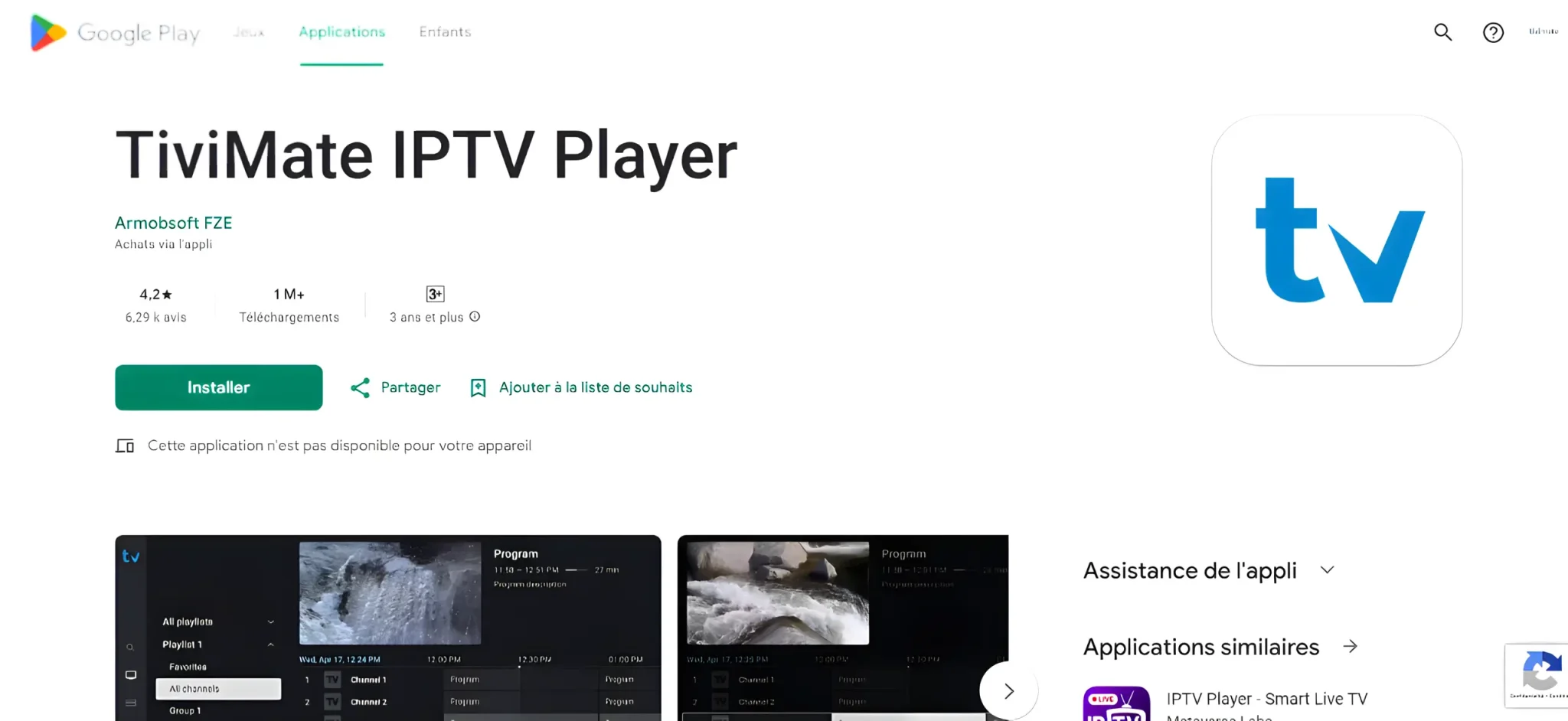
Once in the Play Store, use the search bar to find TiviMate. Type “TiviMate” and select the app from the search results. Hit the “Install” button to start the download and installation.
Troubleshooting Play Store Installation
If you run into issues while installing, here are some quick fixes:
| Issue | Solution |
|---|---|
| Installation fails | Check your internet connection and ensure the Google Play Store is updated. |
| Insufficient storage | Free up space on your Android TV by deleting unnecessary apps or files. |
Method 2 – Installing TiviMate Using the Downloader App
The Downloader app offers a simple alternative for installing TiviMate on Android TV, especially when it’s unavailable through the Google Play Store. This method is particularly helpful for devices that restrict direct installations from unknown sources.
A. Installing the Downloader App
To start, you’ll need to install the Downloader app on your Android TV. This can usually be done directly through the Google Play Store.
Once installed, you can find the Downloader app in your list of applications. Make sure it is enabled and ready for use.
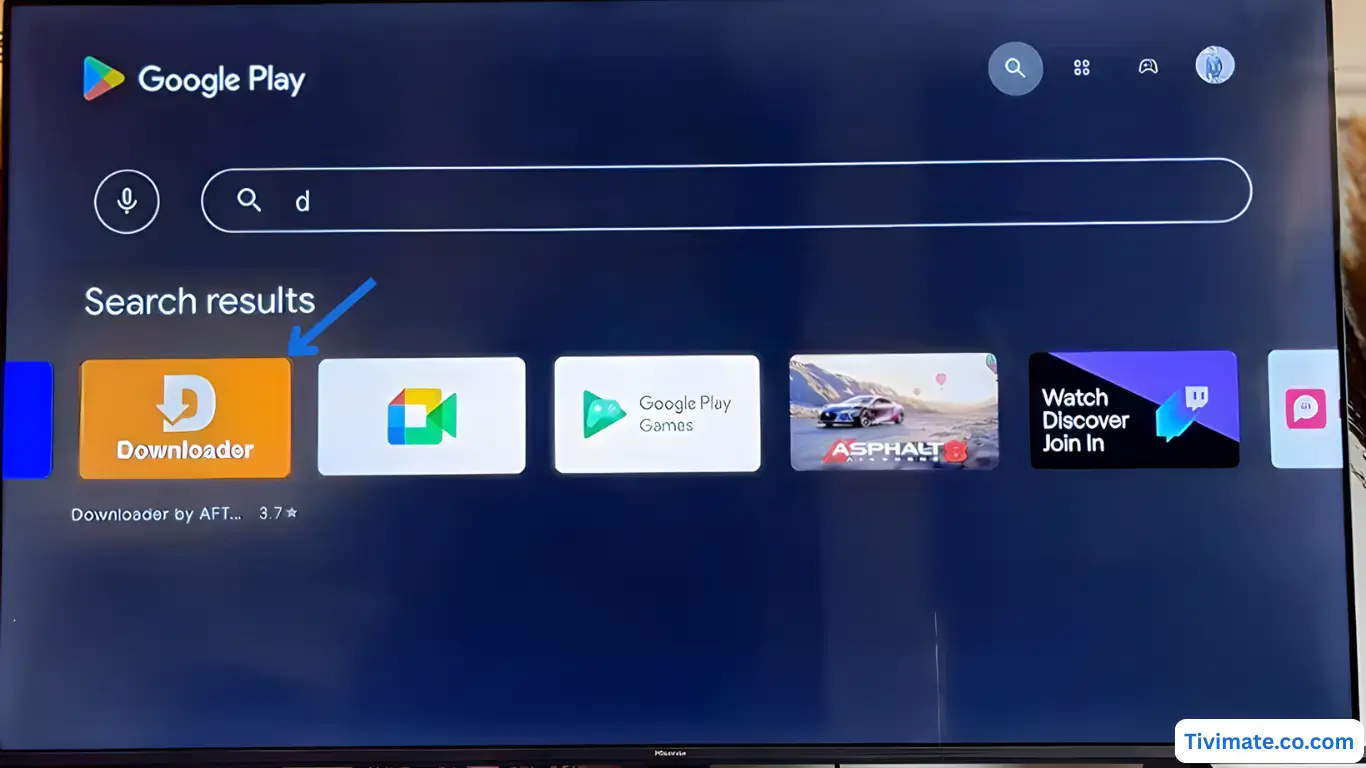
1. Search for Downloader in the Play Store and tap Install to set it up on your device
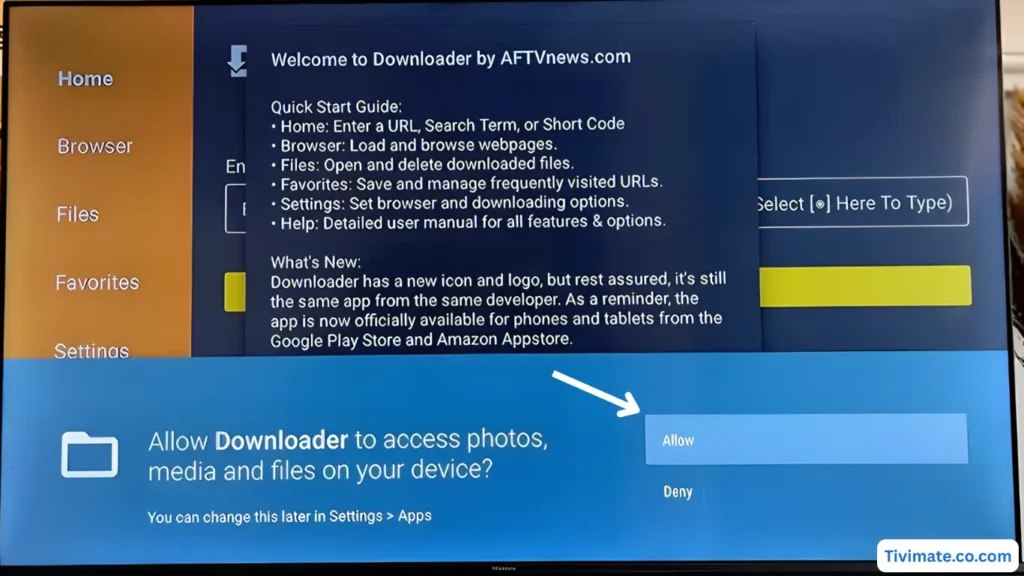
2. Press Allow
3. Click OK to confirm and proceed with the installation
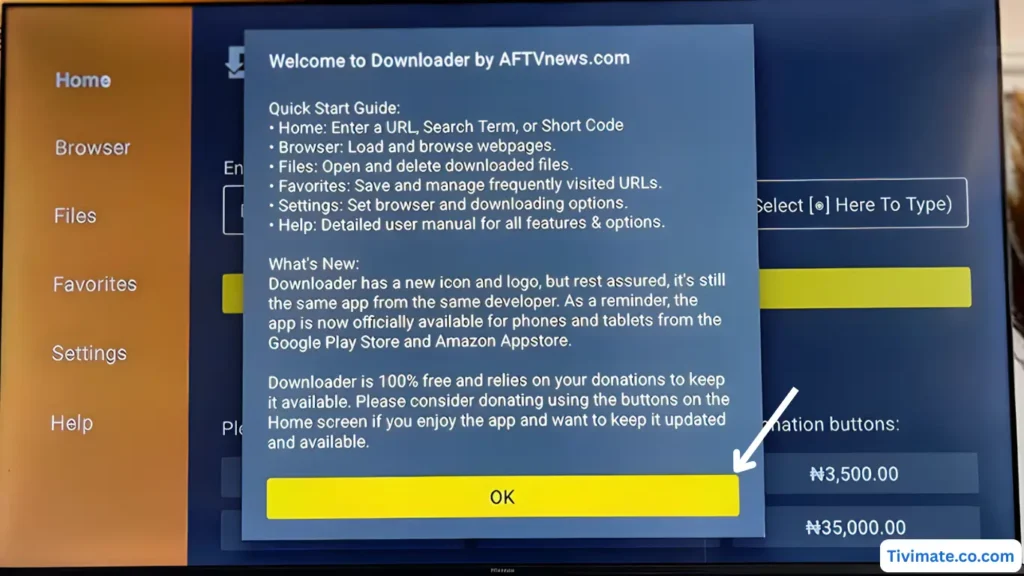
4. Downloader is ready — now install TiviMate
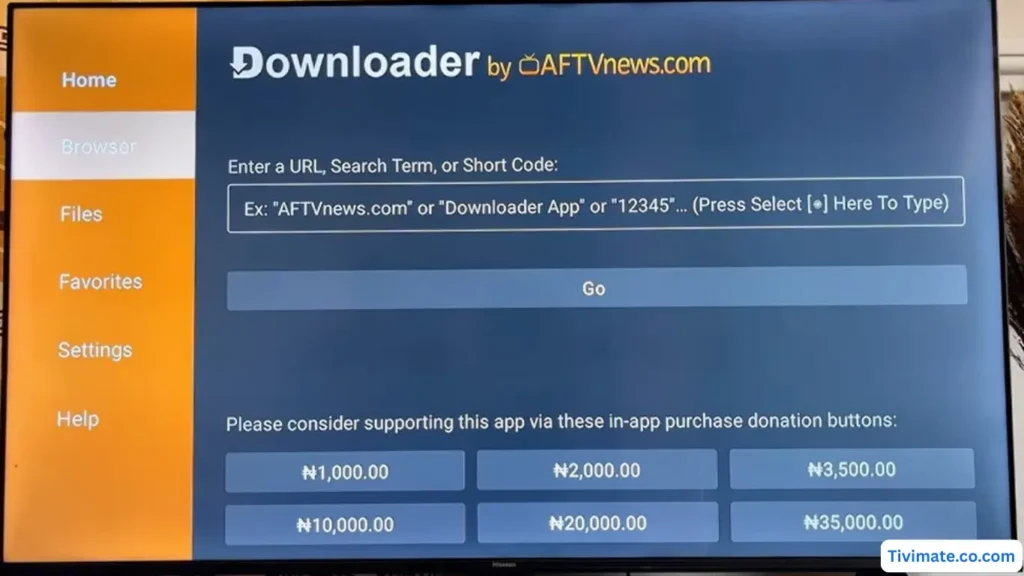
Note: You should go to Settings > Security & Restrictions, select the app, and toggle Allow unknown apps.
B. Installing TiviMate via Downloader App
With the Downloader app set up on your Android TV, you’re now ready to quickly and easily install the TiviMate app.
1. Enter the Downloader code for TiviMate: 272483 and press GO to begin the download
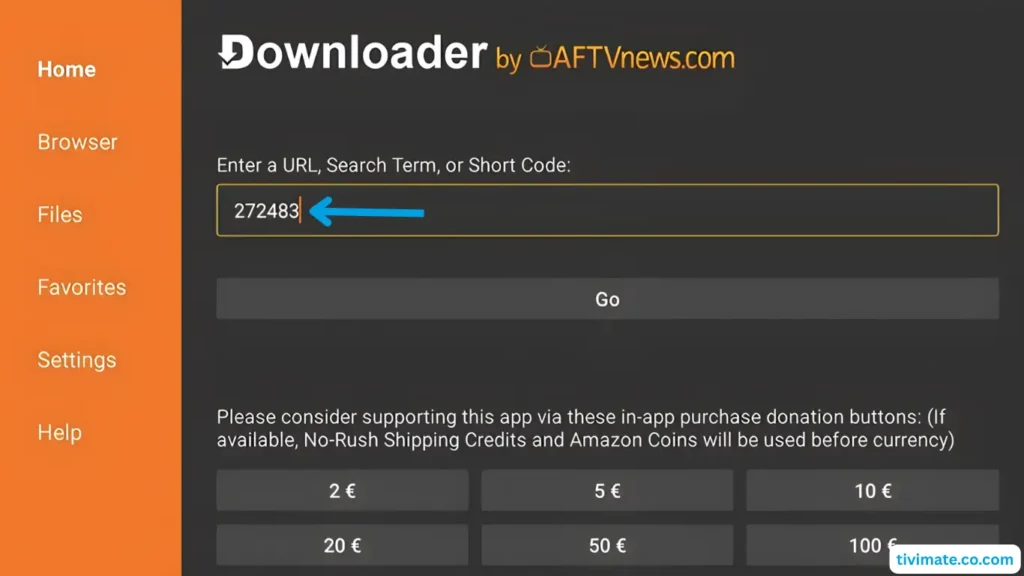
2. Accept the Privacy Policy to proceed with the installation
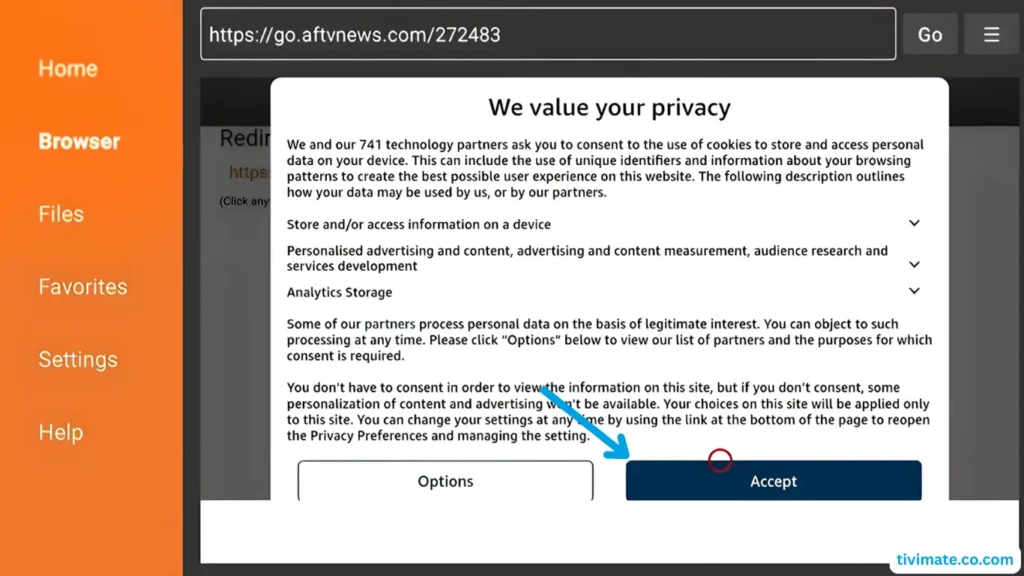
3. Click Install to begin installing TiviMate on your Android TV
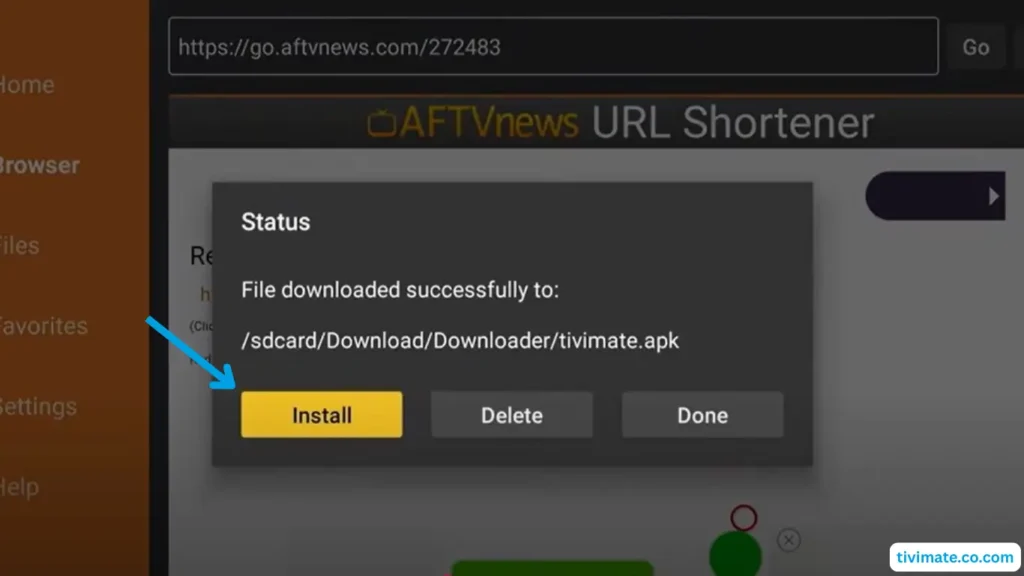
4. Tap Install once more to complete the installation process
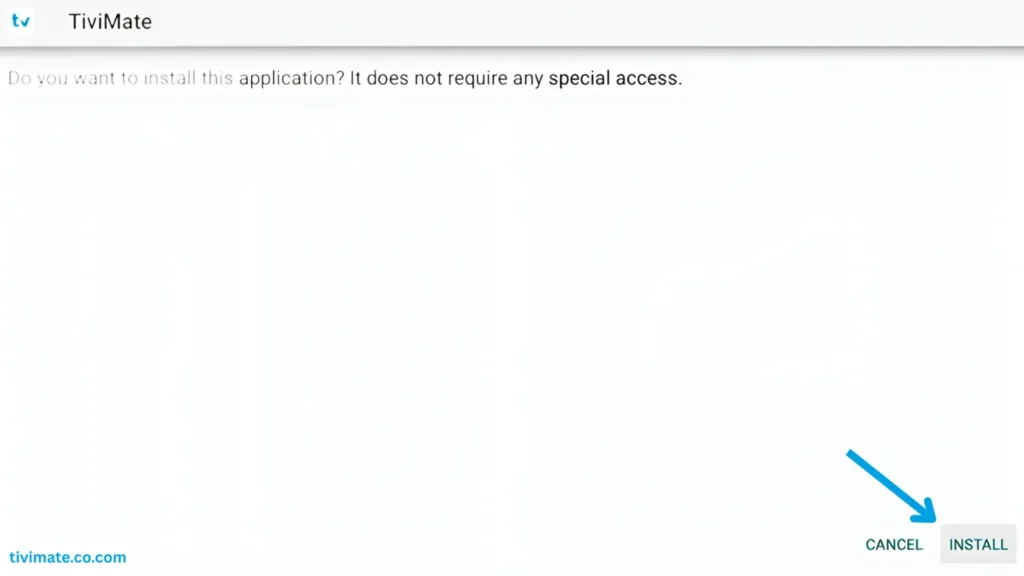
5. The installation is complete. Press DONE to finish
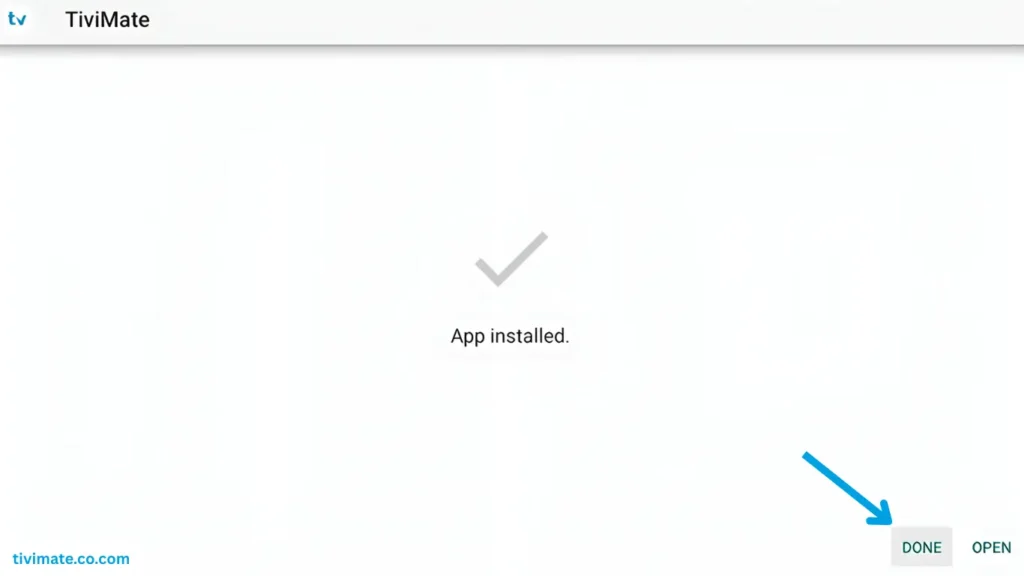
6. Select Delete and press OK to remove the installer file
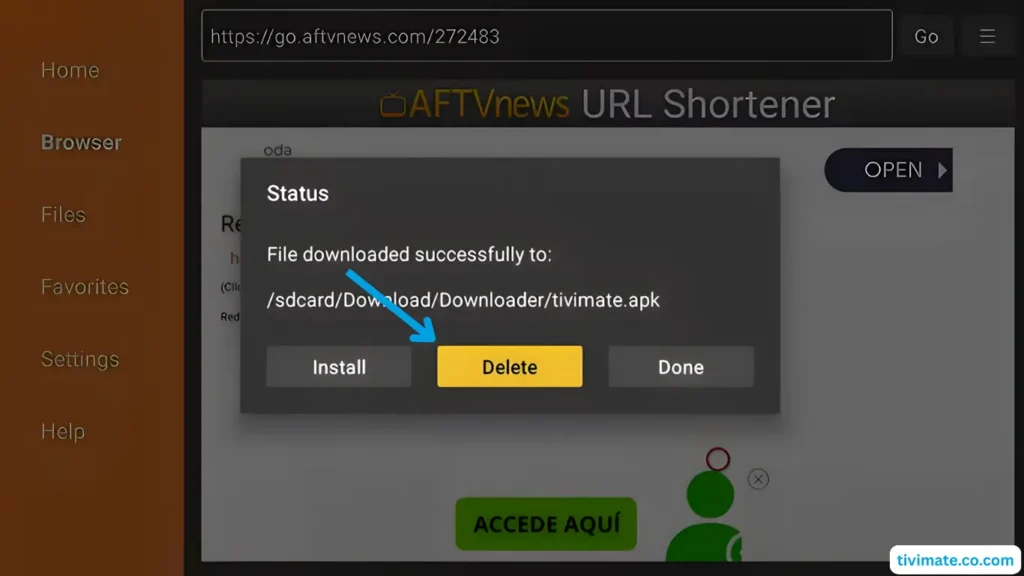
7. Select Delete again and press OK to confirm
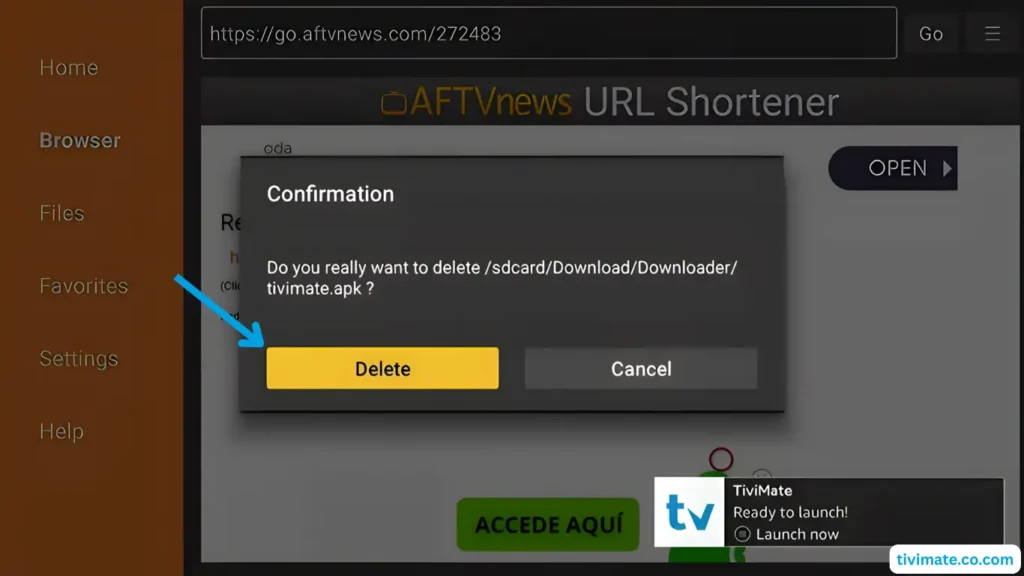
8. Go to Apps and open TiviMate. It’s ready to use
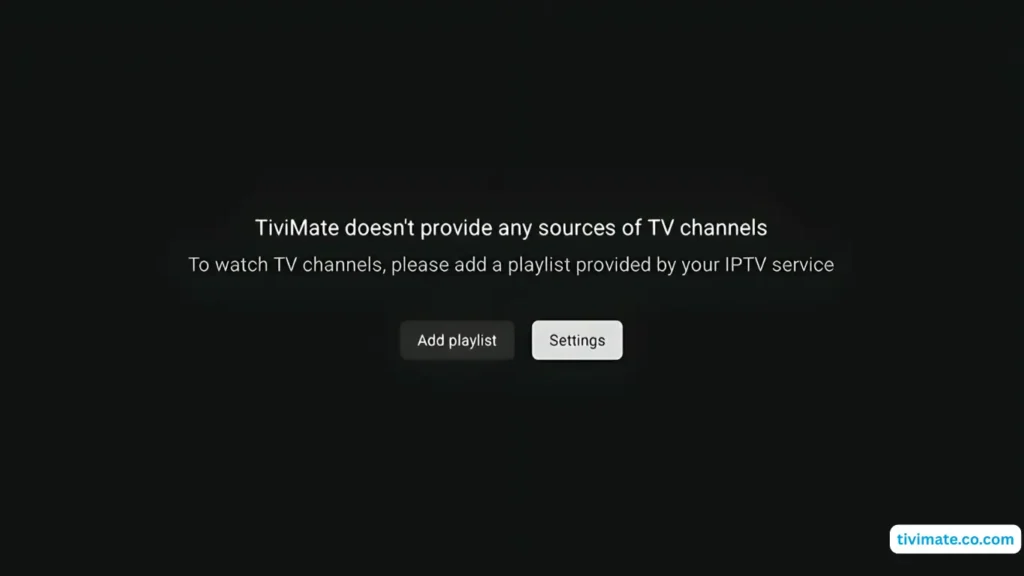
Tivimate Player is a media player app that does not sell, host, or provide IPTV services or content. Users must supply their own legally obtained IPTV playlists to use with the app. Tivimate is designed to stream and organize IPTV content, but we are not affiliated with any IPTV service providers.
Best IPTV Services 2025 (Free Trial 24H/36H)
Top Recommendations for Tivimate
Discover the top IPTV services of 2025 that provide free trials (24–36 hours) and are fully compatible with TiviMate. Enjoy testing live TV, movies, and series before committing to a subscription, ensuring smooth streaming and dependable providers.
Conclusion
Installing TiviMate on your Android TV opens up a world of IPTV streaming possibilities. With its user-friendly interface and robust features, TiviMate ensures a seamless viewing experience. The installation process, whether through the Google Play Store, the Downloader app, or sideloading from a USB drive, is simple and easy to follow.
After setting up TiviMate, you can enjoy your favorite IPTV channels, customize the app to your preferences, and take advantage of premium features for an enhanced experience. TiviMate’s compatibility with a variety of Android TV devices ensures that you can enjoy IPTV streaming on your preferred device.
By following the steps in this guide, you can unlock TiviMate’s full potential and enjoy a superior IPTV streaming experience. Explore the app’s features, stay updated with the latest version, and consider upgrading to TiviMate Premium for additional benefits.