
What You Need Before You Start
Before diving into the IPTV setup process, make sure you have everything ready. A missing item at any stage will slow you down.
- A confirmed subscription from a licensed IPTV Canada provider — view MaxIPTV plans here
- Your Xtream Codes login (username, password, server URL) or M3U playlist URL — sent by email after signup
- A compatible streaming device — Fire Stick, Smart TV, Android box, iPhone, Apple TV, or PC
- A stable internet connection — minimum 10 Mbps for HD, 25 Mbps for 4K
- An IPTV player app: IPTV Smarters Pro, TiviMate, or GSE Smart IPTV
Internet Speed Requirements for IPTV Canada
Your connection speed determines the quality of every stream you watch. Run a test at speedtest.net or fast.com before proceeding.
| Use Case | Minimum Speed | Recommended Speed |
|---|---|---|
| SD on 1 device | 3 Mbps | 5 Mbps |
| HD on 1 device | 5 Mbps | 10 Mbps |
| Full HD on 1 device | 10 Mbps | 15 Mbps |
| 4K on 1 device | 25 Mbps | 35 Mbps |
| HD on 2–3 devices | 25 Mbps | 50 Mbps |
| HD on 4–5 devices | 50 Mbps | 100 Mbps |
Network Optimization Tips
- Connect your main TV via Ethernet cable — eliminates WiFi interference entirely
- Use the 5 GHz WiFi band on devices that cannot use Ethernet
- Place your router centrally, away from walls and other electronics
- Upgrade to a WiFi 6 router if streaming on 3 or more devices simultaneously
- Use a mesh network system for large homes to eliminate dead zones
IPTV Setup on Amazon Fire TV Stick
The Amazon Fire TV Stick 4K is the most popular device for IPTV Canada setups in 2026 — affordable (~$79 CAD), portable, and compatible with every major IPTV player app.
Step 1 — Enable Apps from Unknown Sources
Go to Settings → My Fire TV → Developer Options and toggle Apps from Unknown Sources to ON. This allows sideloaded IPTV apps to be installed.
Step 2 — Install the Downloader App
Open the Amazon App Store, search for Downloader by AFTVnews, and install it. This app lets you download IPTV player APKs directly to your Fire Stick.
Step 3 — Download and Install IPTV Smarters Pro
Open Downloader and enter the IPTV Smarters Pro APK URL provided in your MaxIPTV welcome email. Download and install the APK, then open the app.
Step 4 — Enter Your IPTV Credentials
Select Login with Xtream Codes API. Enter your username, password, and server URL exactly as provided by MaxIPTV. Tap Add User — your full channel list loads automatically.
Step 5 — Configure Your Channel List
Browse Live TV for all IPTV channels. Add favourites, set up parental controls under Settings, and explore Movies and Series for on-demand content.
IPTV Setup on Samsung and LG Smart TV
Option A — Smart TV App Store
- Samsung: Open Smart Hub → Apps and search for IPTV Smarters or SS IPTV
- LG: Open LG Content Store and search for SS IPTV or SmartOne IPTV
- Install the app and log in with your Xtream Codes credentials from MaxIPTV
Option B — Cast from Your Phone
- Install IPTV Smarters Pro on your Android or iPhone
- Connect your phone and Smart TV to the same WiFi network
- Use Cast or Screen Mirror to display your IPTV stream on the big screen
Option C — External Streaming Device (Recommended)
If your Smart TV’s built-in app store has limited options, plug in an Amazon Fire Stick or Android TV box via HDMI. This is the most reliable Smart TV solution for IPTV Canada setups and gives you full access to all IPTV player apps.
IPTV Setup on Android TV Box
Android TV boxes — Formuler Z8 Pro, BuzzTV, or any Android box — are among the most flexible devices for IPTV pro setups in Canada.
Step 1 — Install TiviMate from Google Play Store
Open the Google Play Store on your Android box. Search for TiviMate — the best overall Android IPTV player for 2026 — or IPTV Smarters Pro. Install your preferred app.
Step 2 — Add Your MaxIPTV Playlist
Open TiviMate and select Add Playlist → Xtream Codes. Enter your MaxIPTV username, password, and server URL. Your channels, EPG, and on-demand library load within 1–2 minutes.
Step 3 — Configure EPG Refresh
Go to Settings → EPG and set the update frequency to every 24 hours for accurate program guide data across all your IPTV channels.
Understanding Your IPTV Credentials
After subscribing to MaxIPTV, you will receive three key pieces of information by email. Keep these safe — you need them every time you configure a new device.
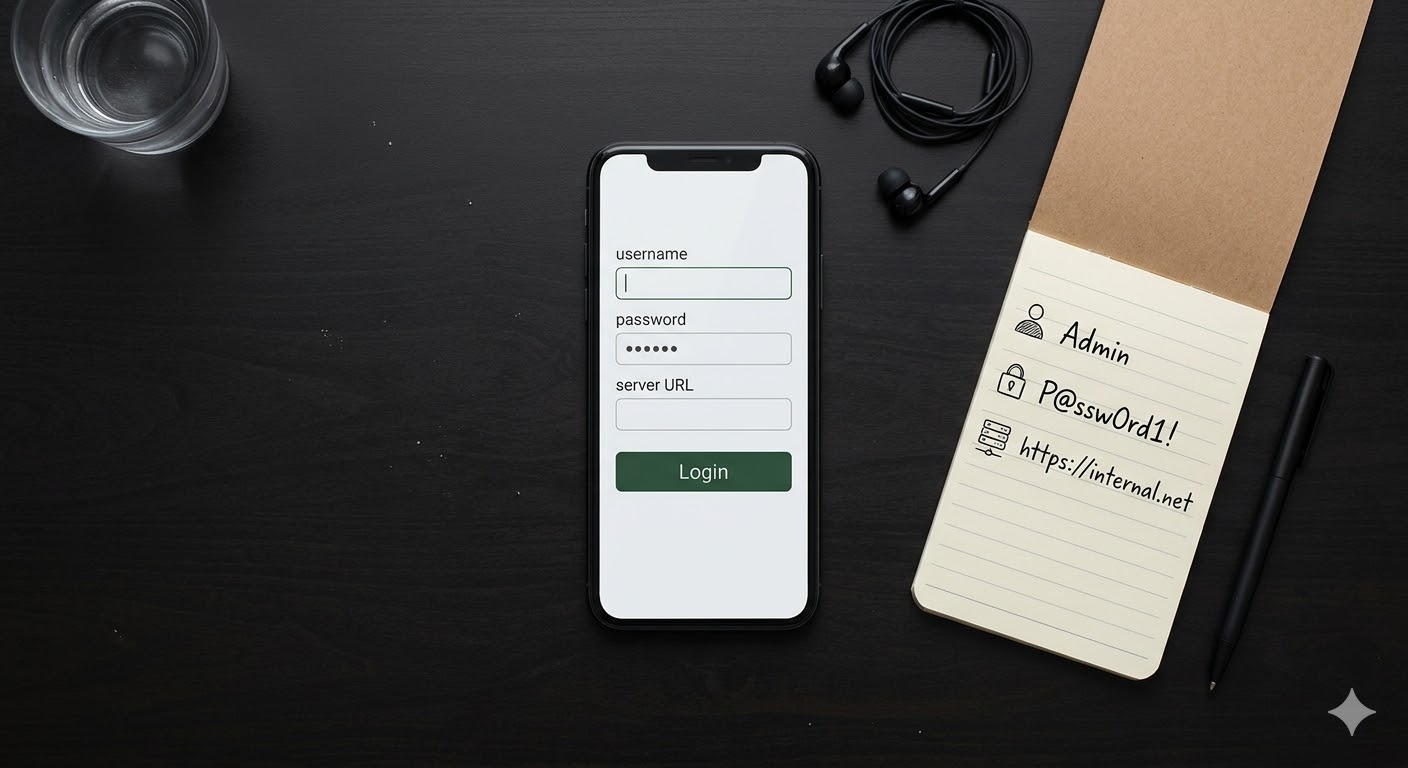
| Credential | What It Is | Example Format |
|---|---|---|
| Server URL | Address of the IPTV server | http://server.maxiptv.ca:8080 |
| Username | Your unique account identifier | johnca2026 |
| Password | Your account password | •••••••••• |
| M3U URL | Alternative playlist format | http://server…/get.php?… |
IPTV Setup on iPhone and iPad (iOS)
iOS devices are limited to App Store apps only. The best options for IPTV Canada on iPhone and iPad in 2026:
- IPTV Smarters Pro — search directly in the App Store, supports Xtream Codes
- GSE Smart IPTV — highly rated, clean EPG, supports M3U and Xtream Codes
- Flex IPTV — smooth interface, good for Apple ecosystem users
Step 1 — Install from the App Store
Open the App Store, search for GSE Smart IPTV or IPTV Smarters Pro, and install it free of charge.
Step 2 — Log In with Xtream Codes
Open the app, navigate to Remote Playlists or Xtream Codes Login, and enter your MaxIPTV credentials. Your full channel list populates automatically.
Step 3 — Enable Background App Refresh
In iOS Settings, find your IPTV app and enable Background App Refresh for uninterrupted streaming and EPG updates.
IPTV Setup on Apple TV
Apple TV 4K is a premium device for IPTV Canada streaming. Available apps on the tvOS App Store:
- IPTV Smarters Pro — search directly in the tvOS App Store
- Flex IPTV — clean interface with Xtream Codes support
- GSE Smart IPTV — supports M3U and Xtream Codes on tvOS
Install your preferred app, log in using your MaxIPTV Xtream Codes credentials, and navigate your channel list using the Apple TV remote. For a complete Apple TV setup walkthrough, visit the MaxIPTV setup guide.
IPTV Setup on Windows or Mac
Recommended Apps
- VLC Media Player — free, open source, available on Windows and Mac
- Kodi with the PVR IPTV Simple Client add-on
- IPTV Smarters Web — browser-based, no install required
VLC Setup — Quickest Method
Download and install VLC from videolan.org. Open VLC and go to Media → Open Network Stream. Paste your M3U playlist URL provided by MaxIPTV and click Play. Your full channel list loads as a left-panel playlist. Save the stream URL as a VLC bookmark for instant access in future sessions.
Streaming IPTV Canada on Multiple Devices
Most IPTV Canada subscriptions allow between 2 and 5 simultaneous connections. MaxIPTV plans are clearly structured so you know exactly how many devices you can run at once — no surprises. Check the current plan details on the pricing page.
If you need more simultaneous connections for a large household, contact the support team to discuss multi-connection options before subscribing.
Configuring Your EPG (Electronic Program Guide)
A properly configured EPG transforms your IPTV setup from a basic channel list into a full TV guide — showing what is on now, what is coming next, and allowing you to schedule recordings.
EPG Setup in TiviMate
- Go to Settings → Playlist → EPG Source
- Your EPG URL is usually included automatically with your Xtream Codes login
- Set EPG refresh to every 24 hours
- Enable Show EPG on channel list for on-screen program information
EPG Setup in IPTV Smarters Pro
- Navigate to Settings → EPG Settings
- Confirm the EPG URL is populated from your Xtream Codes login
- Set the update interval to daily
- Return to Live TV — each channel now shows current and upcoming program information
Troubleshooting Common IPTV Setup Issues
Buffering or Freezing
- Run a speed test — confirm your connection meets the minimum requirements
- Switch from WiFi to a wired Ethernet connection
- Lower stream quality from 4K or 1080p to 720p temporarily
- Restart your router and streaming device
- Contact MaxIPTV support if the issue persists across multiple channels
Channels Not Loading
- Verify your credentials are entered correctly — one wrong character breaks the connection
- Confirm your subscription is active on the MaxIPTV pricing page
- Try switching from Xtream Codes login to M3U playlist URL
- Restart the IPTV app completely
EPG Not Showing
- Manually trigger an EPG refresh in your app settings
- Confirm your Xtream Codes server URL is correct
- Allow up to 30 minutes for the full EPG to populate on first load
Black Screen on Specific Channels
- Use a VPN set to a Canadian server — resolves most geo-restriction issues
- The channel may be temporarily down — check back after 30 minutes
- Switch to a backup stream URL if your provider offers one
Best IPTV Player Apps for Canada in 2026
| App | Best Device | Xtream Codes | M3U | Price |
|---|---|---|---|---|
| TiviMate | Android TV / Box | Yes | Yes | Free / $4.99 |
| IPTV Smarters Pro | Fire Stick / iOS / Android | Yes | Yes | Free |
| GSE Smart IPTV | iOS / Apple TV | Yes | Yes | Free / $2.99 |
| Flex IPTV | Apple TV / iOS | Yes | Yes | Free / $3.99 |
| VLC | Windows / Mac | No | Yes | Free |
| SS IPTV | Samsung / LG Smart TV | No | Yes | Free |
All of the apps above are compatible with MaxIPTV credentials. For device-specific installation instructions, visit the MaxIPTV setup guide.
Legal Considerations Before You Set Up
Setting up IPTV Canada with a licensed provider is legal. Always review the terms before completing your setup.
- Review MaxIPTV Terms and Conditions — covers acceptable use, connection limits, and account rules
- Read the MaxIPTV Refund and Returns Policy — understand your rights if the service does not meet your expectations
- Use a secure payment method when subscribing
- Consider a VPN for additional privacy when streaming
Frequently Asked Questions: IPTV Setup Canada
What is the easiest device to set up IPTV on in Canada?
The Amazon Fire TV Stick 4K is the easiest device for IPTV Canada setup in 2026. The process takes under 10 minutes and the device costs around $79 CAD. Full instructions are on the MaxIPTV setup guide.
Which IPTV app is best for Canada in 2026?
TiviMate is the best overall IPTV pro app for Android devices. IPTV Smarters Pro is the best cross-platform option — it works on Fire Stick, iOS, Android, and Smart TVs.
How do I get my IPTV credentials?
After subscribing through the MaxIPTV pricing page, your Xtream Codes username, password, and server URL are sent to your email within minutes.
Can I set up IPTV on multiple devices with one subscription?
Yes. Most MaxIPTV plans support 2–5 simultaneous connections. See the pricing page for exact connection limits per plan.
What do I do if my IPTV stream keeps buffering?
Start by testing your internet speed and switching to a wired Ethernet connection. If the issue continues, visit the MaxIPTV FAQ or contact support directly.
Is setting up IPTV in Canada legal?
Setting up IPTV with a licensed provider is legal. Always review the Terms and Conditions and confirm your provider holds proper content rights before subscribing.
Ready to Start Streaming?
Get your MaxIPTV Canada subscription and be streaming in under 15 minutes — on any device, no technician required.